DNS Records
Use these DNS records when you are setting up a new domain with MXroute email hosting.
Warning
Depending on which server is hosting the specific domain you’re adding, you may need to change the mx01 referenced below to a different value.
Check with Tristan if you need clarification.
Setting DNS Records
Set these records in the DNS provider for the domain you’re setting up.
| Type | Host | Value | Priority |
|---|---|---|---|
| TXT | see Domain Verification | domain-verified |
|
| MX | @ (or leave blank) |
mx01.figure13.network |
10 |
| MX | @ (or leave blank) |
mx01-relay.figure13.network |
20 |
| TXT | @ (or leave blank) |
v=spf1 include:spf.mx01.figure13.network -all |
|
| TXT | _dmarc |
v=DMARC1; p=quarantine; |
|
| TXT | x._domainkey |
see DKIM Key |
Domain Verification
Before adding a domain in MXroute, we need to add a verification TXT record to prove we control the domain.
- Log in to the control panel and navigate to the DNS page.
- Scroll down the page until you find the Domain Verification Key section.
- Copy the verification key. It will look like
_da-verify-a1b2c3.... - In your DNS provider, create a new
TXTrecord with verification key.
DKIM Key
Each domain has its own individual DKIM record. To find the DKIM key for your domain:
Tip
You need to set up the new domain in the MXroute panel before you can find your DKIM key.
- Log in to the control panel and navigate to the DNS page.
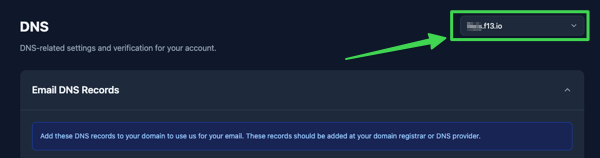
- Make sure you have the proper domain selected, using the dropdown in the top right corner:
- Scroll down until you see the DKIM Record. Its value will be something like
v=DKIM1; k=rsa; p=a1b2c3.... - Copy the full key using the copy button, and paste it in your DKIM DNS record (described in the table above).